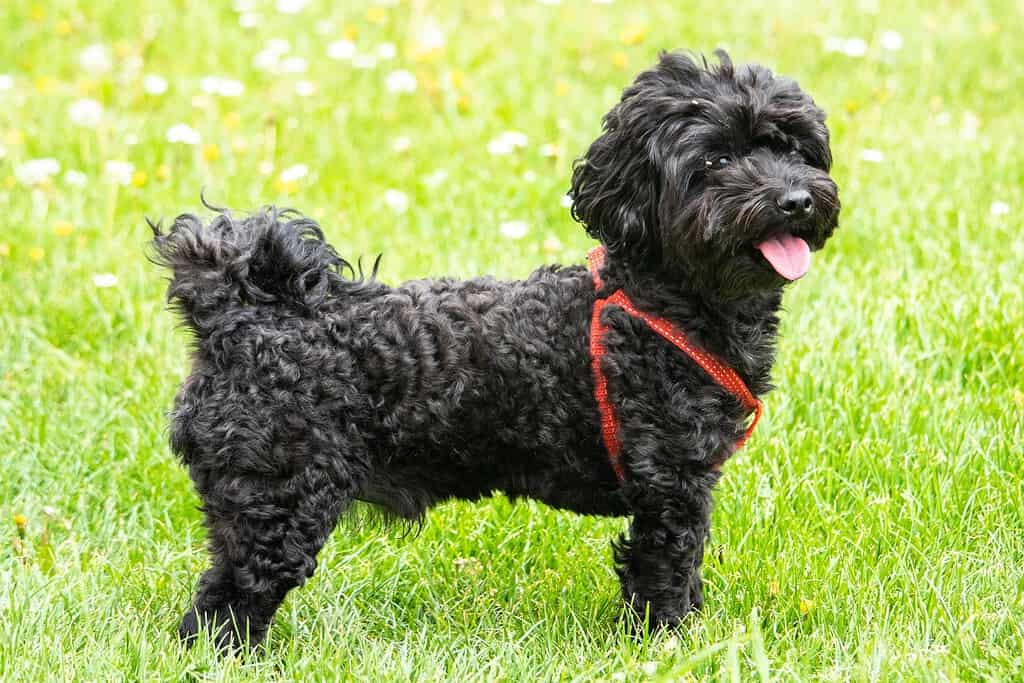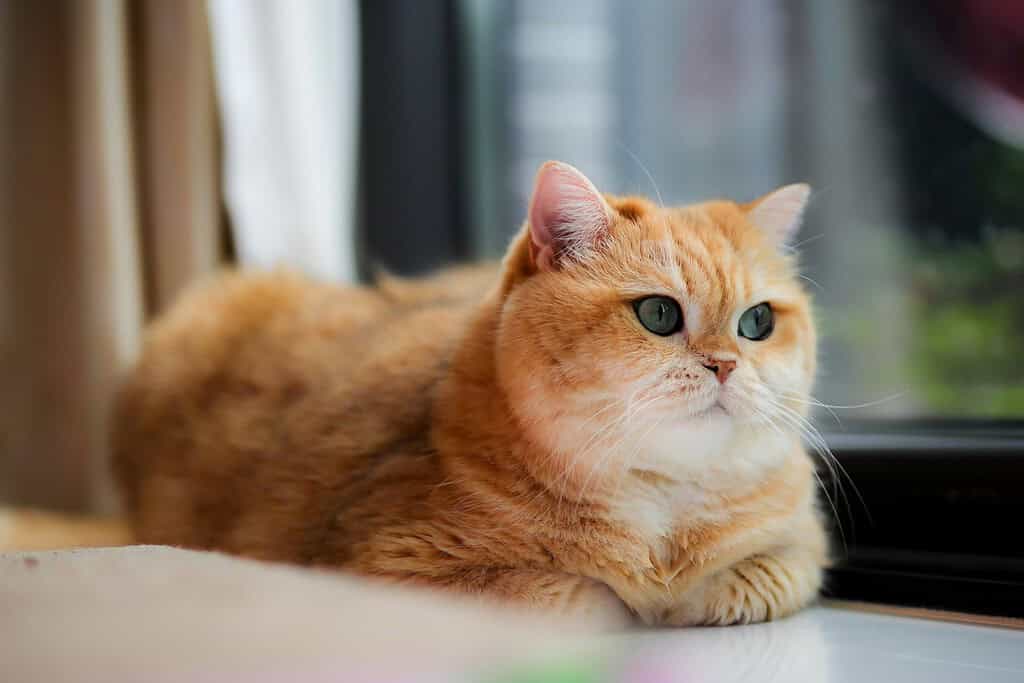
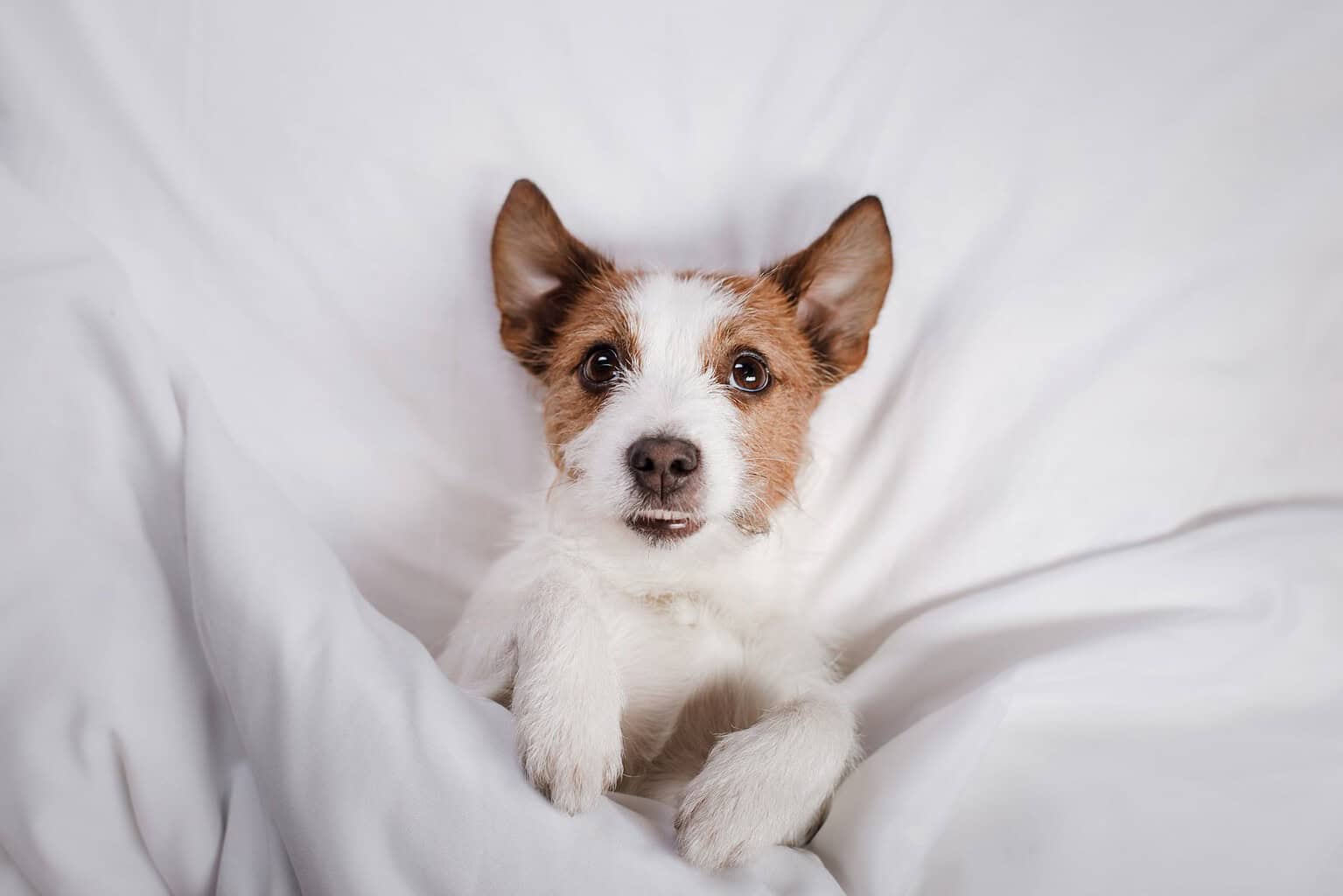
To make your pet your phone wallpaper, pick a sharp, vertical photo with your dog or cat in the lower half of the frame, then set it from your phone’s wallpaper settings. On iPhone with iOS 26, touch and hold the Lock Screen, tap the plus button, choose Photos or Photo Shuffle, and try the depth or spatial effect. On Android, touch and hold the Home screen and open Wallpaper & style (Pixel) or Wallpapers (Samsung). Want something more fun? Turn your pet into a stylized character wallpaper with the Lohji app.
Last updated: January 2026
Why your pet belongs on your lock screen
If your camera roll is mostly fur, you are in good company. A Rover survey of 1,000 dog owners found that more than one third already have their dog as their phone screensaver, and that dogs make up about 30 percent of the photos owners take, ahead of partners and children. So “how do I make my dog my lock screen?” is not a silly question. It is one of the most common little phone projects there is.
The trouble is that most pet wallpapers look a bit off. The clock lands on your dog’s eyes, the photo is blurry when stretched to full screen, or your cat is a tiny gray smudge in the corner of a sideways shot. The good news is that modern phones give you a lot of control, and a few photo habits make a huge difference.
The new year, with a camera roll full of holiday photos, is a natural moment for a refresh. This guide covers the exact settings on iPhone and Android, how to frame a photo so it actually works at 9:16, how to make a cartoon-style pet wallpaper of your own animal, and one thing most wallpaper guides skip: why the photo you choose today could help bring your pet home if they ever go missing.
Pet wallpaper options at a glance
Before you start, here is what each major phone platform lets you do with a photo of your pet. Feature names come from Apple, Google and Samsung support pages.
| Phone | Single photo | Rotating photos | 3D or motion effect |
|---|---|---|---|
| iPhone (iOS 26) | Photos | Photo Shuffle, with an album or hand-picked photos | Depth Effect, Spatial Scene (iPhone 12 and later), Live Photo motion |
| Google Pixel | My photos | Not for your own photos (daily wallpaper uses Google’s images) | Cinematic wallpaper (Pixel 6 and later) |
| Samsung Galaxy | Gallery | Select several Gallery images for the Lock screen | Video lock screen, plus Frame or Effect on One UI 6.1 and later |
Whichever phone you have, the same rule applies: a well-composed vertical photo beats any effect. Effects only make a good photo better.
How to make your dog your lock screen on iPhone
Apple’s lock screen editor has been around since iOS 16, and iOS 26 added two big upgrades that suit pet photos: a clock that adapts to your image and spatial scenes that give a photo a 3D feel as you tilt the phone. Here is the process, based on Apple’s iPhone User Guide.
Create a new pet lock screen
- Wake your iPhone, then touch and hold the Lock Screen. If the editor does not open, touch and hold again and enter your passcode.
- Tap the plus button to create a new Lock Screen, or swipe to an existing one and tap Customize.
- Choose Photos to pick one picture, or Photo Shuffle to rotate through several.
- Reposition your pet. Pinch open to zoom, drag with two fingers to move the image, and pinch closed to zoom out.
- Swipe left or right to try different styles and color filters.
- Tap Add, then choose Set as Wallpaper Pair or Customize Home Screen.
You can also start from the Photos app. Open a photo, tap the share button, choose Use as Wallpaper, and Apple sends you straight into the same editor.
Depth Effect and spatial scenes
Depth Effect lets your pet’s head sit in front of the clock, which is the look most people are chasing. Apple notes it works with photos that support layering, “like an image with people, pets, or the sky,” and that it may not be available if the subject is too high or too low or covers too much of the clock. On iPhone 12 and later running iOS 26, eligible photos can also become a spatial scene. Tom’s Guide describes a hexagon-shaped button that applies the effect, with a “Generating Spatial Scene” message while it works. You can also drag the bottom right corner of the clock to make it taller, and iOS adapts the time to your photo.
How to set a pet wallpaper on Android
Android phones vary by brand, so here are the two most common in the US: Google Pixel and Samsung Galaxy.
Google Pixel
- On the Home screen, touch and hold an empty space, then tap Wallpaper & style.
- Tap More wallpapers, then My photos, and choose your pet’s picture.
- Preview the Home and Lock screen views, then tap Set wallpaper.
- Pick Home screen, Lock screen, or Home and lock screens.
On Pixel 6 and later, Google’s help page explains that you can turn a photo into a Cinematic wallpaper, which adds a subtle 3D motion effect. It works best when your pet is clearly separated from the background, the same rule that applies to Apple’s depth features.
Samsung Galaxy
- Touch and hold the Lock screen and enter your PIN or other credentials.
- Tap Wallpapers in the top left corner, then Gallery, and select your photo.
- Drag to position it and pinch to zoom. Try Filter, or Frame and Effect on One UI 6.1 and later.
- Tap Done.
Samsung also lets you use a short video as a Lock screen wallpaper, with a Trim tool to pick the moment. Samsung UK’s guide says up to 15 seconds of a video will play. If you select several Gallery images at once, Samsung lets you set them on the Lock screen, so you get a rotating set of pet photos.
How to take a pet photo that works as a vertical wallpaper
Most people pick a wallpaper by scrolling their camera roll for a photo they love. That is a fine start, but a photo that looks great in your gallery can look strange on a lock screen. Your phone screen is a tall, narrow rectangle, roughly 9:16, and the top third is taken over by the date, the clock and widgets. The bottom edge holds the flashlight and camera buttons. A good pet wallpaper is planned around all of that.
Shoot vertical and leave room above
Hold your phone upright and take the photo in portrait orientation. A sideways photo has to be cropped hard to fill the screen, which throws away most of the pixels and usually cuts off ears or paws. Frame your dog or cat so their head sits roughly in the middle of the frame or a little lower, with clear space above them. That empty space is where the clock goes. Photographers call it negative space. A plain wall, a stretch of sky, a sofa cushion or a lawn behind your pet gives the time something calm to sit on. If you want your pet’s ears to overlap the clock with the depth effect, leave a little more room than feels natural, since Apple notes layering may not work if the subject is too high or covers too much of the clock.
Get down to their level
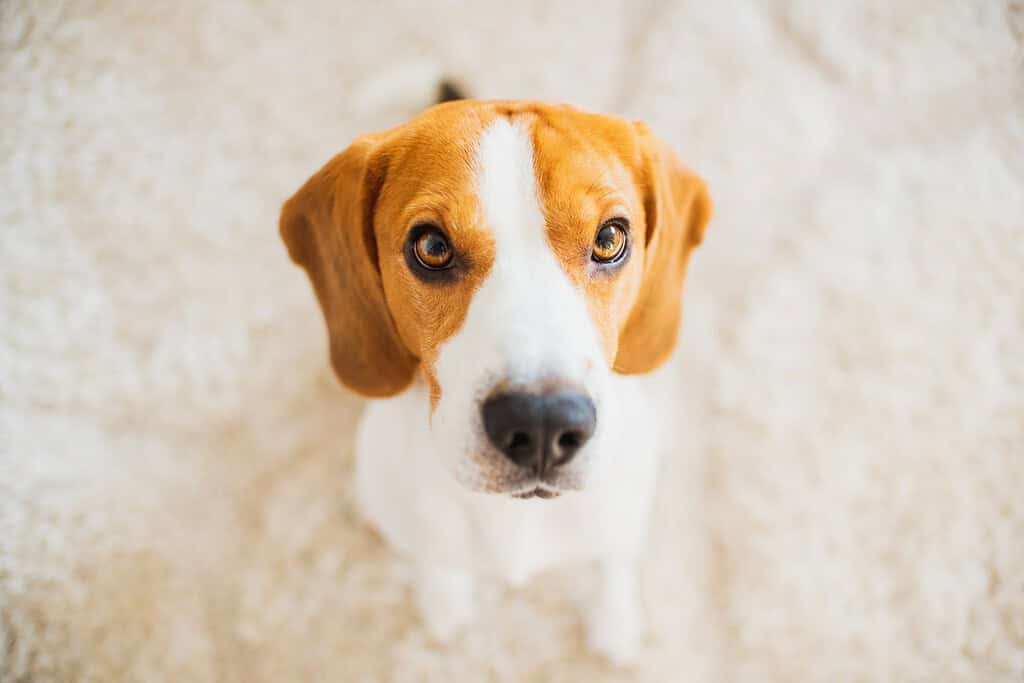
Photos taken from standing height, looking down at the top of a dog’s head, almost never look good full screen. Crouch, sit on the floor, or lie down so the lens is at your pet’s eye level. Eye level shots feel personal and show the face clearly. Hold a treat or a squeaky toy just above the lens so their eyes look toward the camera rather than at your hand.
Light, background and sharpness
Soft daylight is your friend. A spot near a window, a shady porch or an overcast afternoon gives even light without harsh shadows. Keep the background simple and as different in color from your pet as you can: a black cat on a black blanket disappears, but the same cat on a cream rug pops. That separation also helps the phone’s 3D effects, since Apple says eligible photos for spatial scenes typically have clear separation between subject and background.
Sharpness matters more on a lock screen than anywhere else, because you see the image huge, every day. Tap on your pet’s eyes to focus before you shoot. Use burst mode or take a dozen frames, since pets move.
Resolution and file quality
Always set your wallpaper from the original, full-size photo in your library. Screenshots, images saved from a group chat, and photos downloaded from social media are often compressed and smaller, and they look soft when stretched to fill the screen. If you zoomed far in on the original to make the crop work, that is a sign the photo is not the right one. Use your phone’s main 1x lens when you can, since digital zoom throws away detail.
Think in colors and moods
Darker images are easier on the eyes at night and keep white clock text readable, while bright images can wash out the time. A sleepy cat in a sunbeam suits a calm lock screen. A muddy dog mid-zoomie suits a home screen that makes you laugh.
Make a stylized character wallpaper of your pet with Lohji
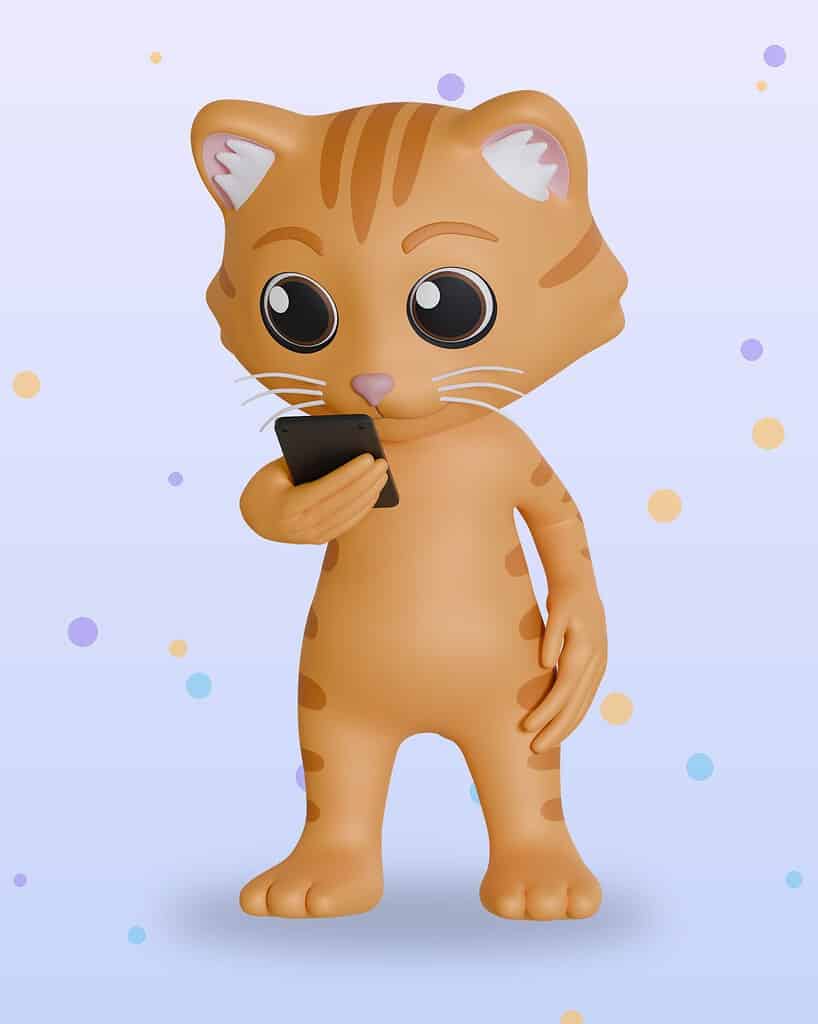
Real photos are wonderful, but sometimes you want something you could not get with a camera: your beagle exploring Machu Picchu, your tabby as a superhero, your pug at a Red Carpet Premiere. That is what the Lohji app is for. It turns one photo of your pet into a 3D animated-movie-style character, then places that character in themed scenes sized for your screens. If you are curious how this compares with other tools, our guides to cartoon pet apps and AI pet art that actually works go deeper.
How it works
- Download the Lohji app from the App Store (Lohji: Cartoon Your Pet) or Google Play (Lohji: Cartoon Pet Avatar) and sign in with your phone number. New accounts get 10 free Lohji Coins.
- Upload one clear photo of your pet to make your Base Lohji, the core character everything else is built from. This costs 2 coins.
- Open Lohji Studio, choose Wallpapers, and pick Phone (9:16) or Tablet (4:5, 3:4 or 4:3).
- Choose one of 207 scene themes, or tap Surprise Me to get a theme you have not made yet.
- Tap Generate, or choose the 4K ULTRA option for extra detail. Each wallpaper costs 3 coins.
- Save it to your photos, then set it using the iPhone or Android steps above.
With the 10 welcome coins, you can make your Base Lohji and two phone wallpapers before spending anything. Coins never expire, and if you want more, they are sold in one-time packs, not as a subscription.
The same character can also become stickers, collector cards and watch faces. Our roundup of fun things to make in Lohji covers the full list, turning your pet into an emoji-style sticker is a natural next step, and if you wear a smartwatch, see our separate guide to making your pet your watch face.
Dog wallpaper and cat lock screen ideas worth stealing
Need a starting point? These ideas work well with the composition tips above.
- The over-the-shoulder clock. Shoot your dog sitting, head near the middle of the frame, sky or wall above. Turn on Depth Effect so their ears tuck over the time.
- The sleepy cat lock screen. A top-down shot of a curled-up cat on a plain blanket, placed in the lower half of the screen. Dark, cozy and easy to read at night.
- The seasonal shuffle. Make one album per season: snow-nose photos in winter, garden photos in spring. Swap the Photo Shuffle album when the season changes.
- The portrait and the character. Use a real photo on the Lock screen and a matching Lohji character scene on the Home screen, or the other way around.
- The motion moment. A Live Photo (iPhone) or short video (Samsung) of a head tilt, a sneeze or a tail wag.
- The multi-pet lineup. Several pets in one horizontal row rarely fits a tall screen. Instead, give each pet its own lock screen and switch between them, or let Photo Shuffle rotate through all of them.
- The tablet companion. A wider 4:3 or 3:4 scene for your iPad or Android tablet, so your pet greets you on every screen you own.
One small trick for multiple lock screens on iPhone: Apple lets you link a Lock Screen to a Focus. You could show a calm cat photo when your Sleep Focus is on and a goofy dog photo during Personal time.
Not tagged yet?
Your pet is on your lock screen. Make sure your number is on their collar too. Shiloh’s House Smart Tags let any finder tap a phone and call or text you in one step, no app needed.
Your lock screen photo is also a safety tool
Here is the part most wallpaper guides leave out. The habit of taking great photos of your pet is also one of the most practical lost-pet preparations you can make. When a pet goes missing, almost every expert checklist starts with a photo.
The ASPCA advises including “a clearly printed, recent photo of your pet” on lost pet flyers, along with breed, coloring, age, weight and distinguishing features. Adopt-a-Pet calls a recent, high-quality photo perhaps the most crucial element of a lost dog poster and suggests taking frequent pictures so you always have up-to-date images. San Diego Humane Society asks for recent, clear photos for both flyers and online posts, and the Hawaii Island Humane Society recommends photos of the face as well as any identifying markings.
Photos now do even more than sit on a flyer. Petco Love Lost, a free national database used by more than 3,000 shelters, matches pets by photo, looking at size, color, facial features and coat attributes.
“First, anyone can search Petco Love Lost for free by uploading a single photo of the lost or found pet.”
Abbie Moore, Chief Operating Officer of Petco Love, AAHA Trends magazine
Some microchip registries also let you add a photo to your pet’s profile. mChip.org explains that if your pet becomes lost, that photo can be visually matched with photos in found-pet databases. Replace it as your pet ages.
Build a favorites album
Make a “Pet ID photos” album next to your lock screen album. Include one sharp full-body shot from the side, one face-on, one showing any unusual markings, and one with your pet’s current collar and tag. The UK’s National Animal Welfare Trust suggests keeping up-to-date photos from lots of different angles so you can post them or print posters quickly. Fairfax County Animal Services adds a smart twist: leave one or two distinguishing marks off your flyer so you can check whether someone claiming to have your pet really does.
Add an “if found” note to your lock screen
Your lock screen is the one part of your phone a stranger can see without your passcode. That makes it a useful place for a short message, both for your phone and for your pets.
Some owners make a simple text graphic, or add a line of text to a pet photo in an editing app, with something like “If found, please call” and a second number that is not this phone. Others add “2 dogs at home, please call” with a trusted neighbor’s number, so someone knows your animals need care if you are ever in an accident. Keep the text in the lower half so the clock does not cover it, and do not include your home address.
On iPhone, it is also worth setting up Medical ID in the Health app with your emergency contacts and turning on Show When Locked. Apple explains that first responders can then view it from the Lock Screen by tapping Emergency on the passcode screen. Pick contacts who would know to check on your pets.
Of course, the same logic applies to your pet. Their collar tag is their lock screen, the one thing a finder sees first. Our guide to what information to include on your pet’s ID tag walks through exactly what to put there.
Putting it all together
Start the year with a quick reset. Take a few new vertical photos of your pet at eye level in good light. Put the best ones in a lock screen album and set up Photo Shuffle or a Samsung lock screen rotation. Save a real full-body shot to a Pet ID album and upload it to your microchip registry. Then, for something purely fun, make a character version of your pet in the Lohji app, available on the App Store and Google Play. Your pet will be the first thing you see every morning, and you will be ready if they ever wander off.
Frequently asked questions
How do I make my dog my lock screen on iPhone?
Touch and hold your Lock Screen, tap the plus button, choose Photos, and select your dog’s picture. Pinch and drag to position it, try the Depth Effect or spatial scene option, then tap Add. You can also open the photo in the Photos app, tap share, and choose Use as Wallpaper.
Why won’t the depth effect work on my pet photo?
Apple says layering may not be available if your pet is too high or too low in the frame, or covers too much of the clock. Zoom out, move your pet lower, and make sure there is clear separation between your pet and the background.
What size should a pet wallpaper be?
Phones use a tall format of roughly 9:16. Shoot in portrait orientation and use the original full-resolution photo rather than a screenshot or a compressed copy from a messaging app. Lohji phone wallpapers are generated in 9:16, with a 4K ULTRA option for extra detail.
Can I have a cat lock screen that changes every day?
Yes. On iPhone, use Photo Shuffle with an album of cat photos and choose how often it changes. On Samsung, select several Gallery images for the Lock screen. Pixel’s daily wallpaper rotation uses Google’s images rather than your own photos.
How much does a Lohji pet wallpaper cost?
Each phone or tablet wallpaper costs 3 Lohji Coins, and creating your Base Lohji character costs 2. New accounts get 10 free coins, enough for a Base Lohji plus two wallpapers. Coins are sold in one-time packs, never expire, and are not a subscription.
Should I use a cartoon of my pet on a lost pet flyer?
No. Use a real, recent, clear photo that shows your pet’s face, body, coat color and markings. Keep cartoon versions for fun, and keep an album of real ID photos ready for flyers, shelters and registry profiles.
Sources
- Create a custom iPhone Lock Screen, Apple Support
- Create a custom iPhone Lock Screen (Customize your Lock Screen photo), Apple Support
- Set up and view your Medical ID, Apple Support
- How to customize your iPhone lock screen in iOS 26, Tom’s Guide (2025)
- Make Photos 3D with Spatial Photos on iPhone, iPhone Life (2025)
- Change wallpaper on your Pixel phone, Google Pixel Phone Help
- Set photos or videos as wallpaper on a Galaxy phone or tablet, Samsung US
- How do I change the wallpaper on my Samsung Galaxy smartphone?, Samsung UK
- Study reveals how many pictures we take of our dogs in their lifetime, LMFM (2023)
- Finding a Lost Pet, ASPCA
- Lost Dog Poster Template, Adopt-a-Pet (2024)
- Lost & Found Pets, San Diego Humane Society (2025)
- Lost and Found Pets, Hawaii Island Humane Society (2022)
- Find Your Lost Pet, Fairfax County Animal Services
- What to do if your cat is lost or stolen, National Animal Welfare Trust
- How AI facial recognition is bringing lost pets home, AAHA (2025)
- How does Petco Love Lost work?, Petco Love Lost
- mChip.org Microchip Registry, mChip.org